
Convert PDF to Word on your PC, free
Turn a PDF into an editable Word document in seconds, without uploading it to a website. Coloured headers, logos, charts and form boxes stay where they were, with the text in front, ready to edit.
Free 7-day beta for Windows 10 and 11, then a free PDF viewer. Runs on your computer: documents are never uploaded.
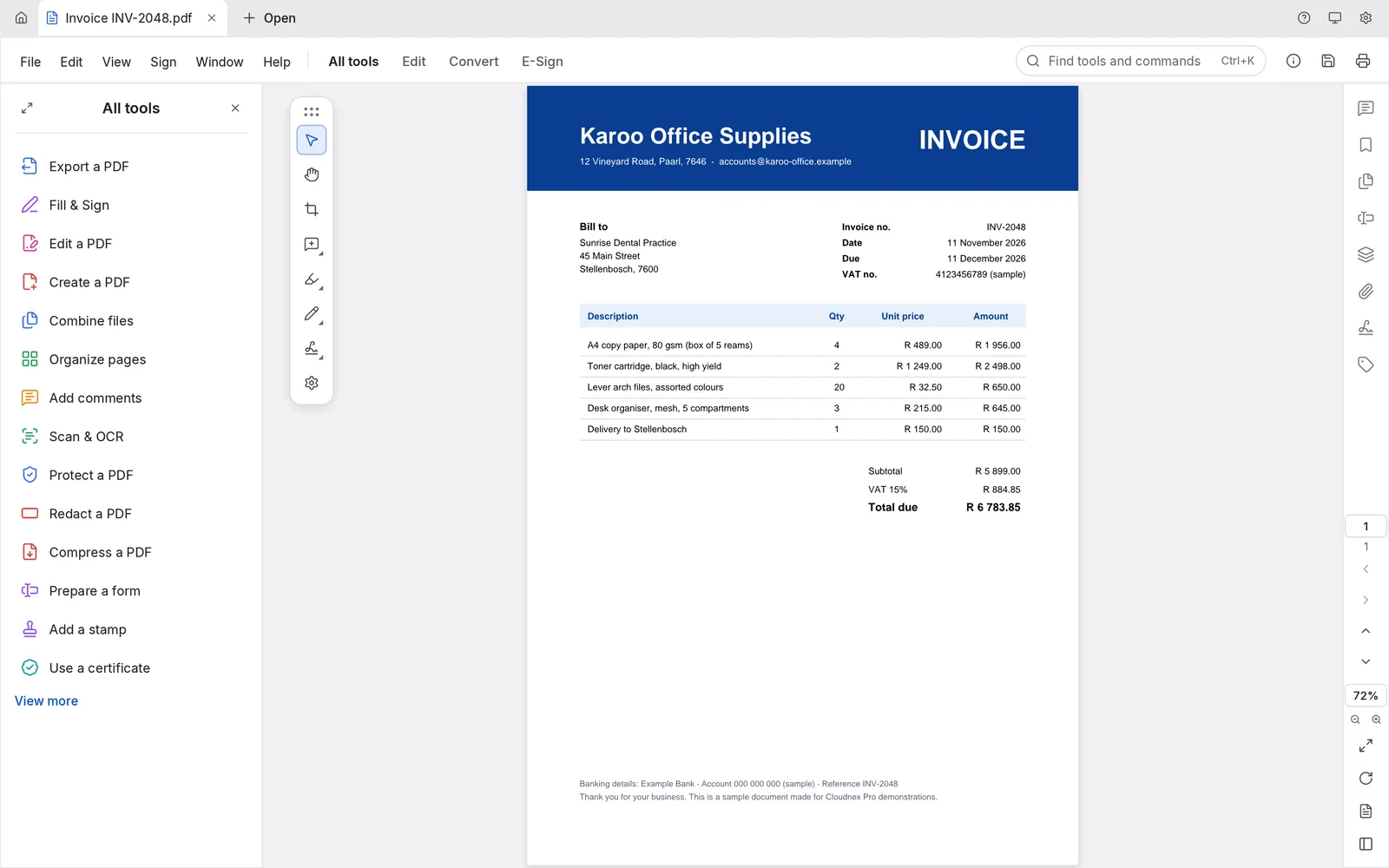
How to convert PDF to Word
- 1
Open the PDF
Double-click it, or drag it into Cloudnex Pro.
- 2
Choose Export a PDF → Microsoft Word
In All tools on the left, or File → Export to Word.
- 3
Save the .docx
Pick a folder. Open it in Word, LibreOffice or Google Docs.
What you can do
- Export to Word (.docx), PowerPoint (.pptx), HTML, Rich Text (.rtf), plain text and PNG images
- Keeps page artwork (colours, logos, charts, form boxes) behind editable text
- Works offline: nothing is uploaded
- Scanned PDF? Run Scan & OCR first so the text can be exported
Questions
Is converting PDF to Word free?
Yes during the beta: Cloudnex Pro is free for 7 days from the first time you open it. Paid plans come after the beta.
Are my files uploaded?
No. The conversion runs on your own computer. Unlike online converters, nothing is sent to a server.
Will the Word file look the same as the PDF?
Very close. Text is placed where it was on the page, with the page artwork behind it. Very complex layouts become positioned text boxes; for heavy rewriting, Rich Text or plain text export can be easier to work with.
Can it convert a scanned PDF?
A scan is a picture, so first use Scan & OCR → Recognize text. Then export to Word.
Can I convert to Excel?
Yes. Use Export a PDF → Spreadsheet (.xlsx): each page becomes a sheet, tables become columns and amounts become numbers you can add up.
Try Cloudnex Pro free for 7 days
Windows 10 and 11. No account, no card. Your documents stay on your computer.